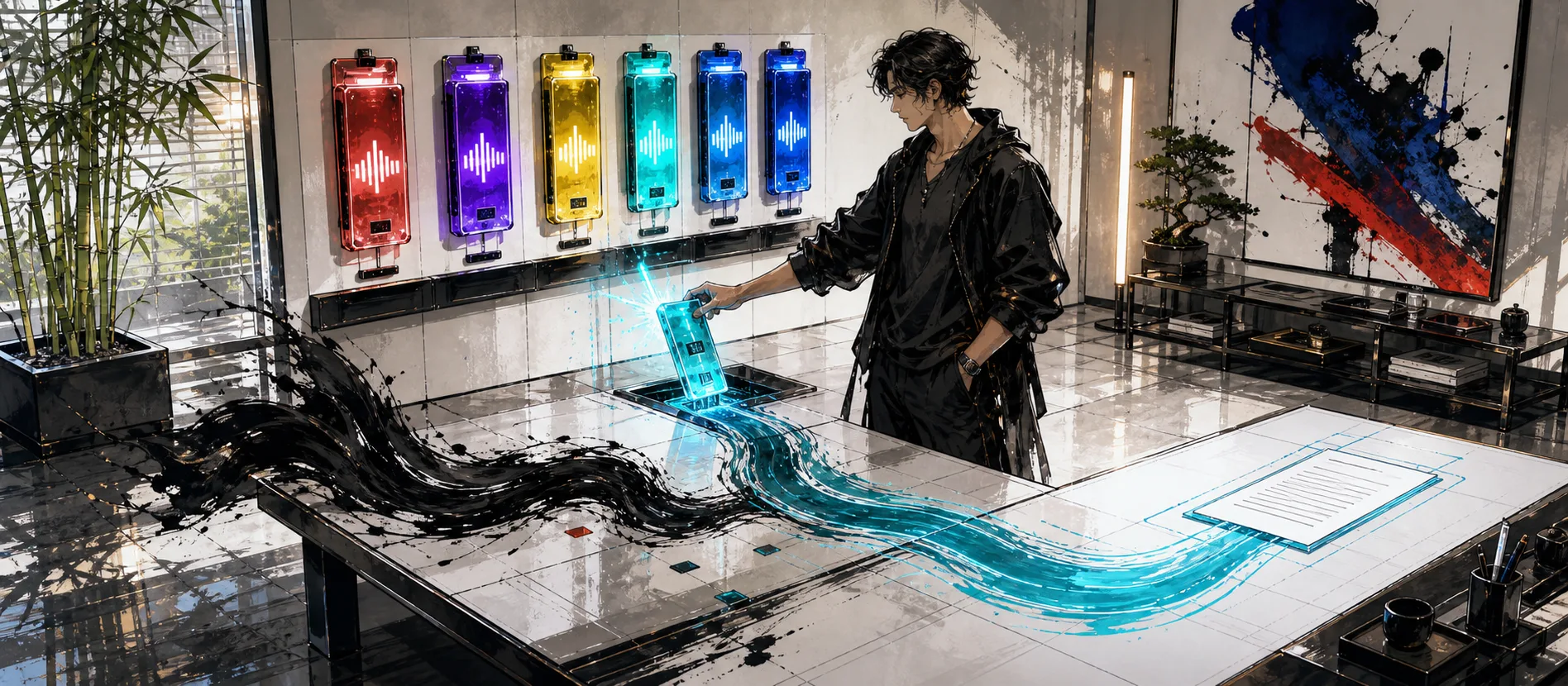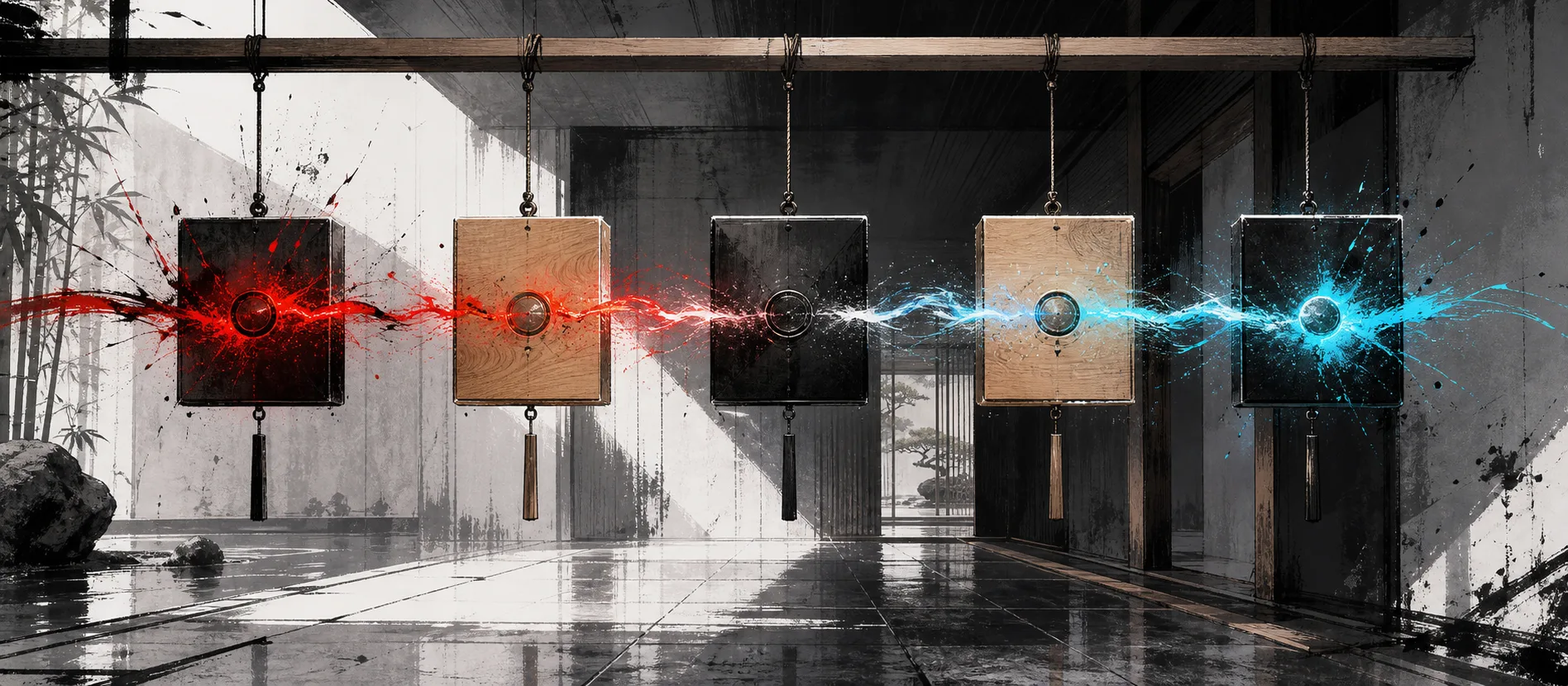
MachinesFluent v1.1.5 makes the app easier to follow without keeping your eyes on the dock. Recording, cancellation, notifications, Smart Actions, and Smart Dictation now have short sound cues, with two selectable sound packages and their own volume control. There is also a new optional shortcut for pasting the latest raw History transcript back into any active app. If you mostly care about what you will actually notice, those are the two changes worth knowing about.
What changed
| Area | What changed | Why it matters |
|---|---|---|
| Sound feedback | Recording start and finish, cancellation, notifications, and successful AI work now have distinct cues. | You can follow the workflow without watching status text. |
| Sound controls | Choose the Clanker or Peanuts sound package, turn sounds off, and set volume from 25% to 100%. | Feedback can match your taste instead of becoming noise. |
| Latest transcript shortcut | An optional hotkey pastes the newest raw History transcript into the active app and leaves it in the clipboard. | Reusing the last thing you said no longer requires opening History. |
Watch v1.1.5 in action
This 68-second demo shows the new sounds inside real work instead of playing them in isolation. It starts with ordinary dictation, then asks a question about a copied image, then uses voice for a web-search question. The short cues tell you what happened without making you stare at the interface.
Dictation, clipboard-image understanding, and web search by voice, with the new audio feedback in context.
Feedback you can hear, not wait for
The new cues cover the moments where uncertainty is annoying: did recording start, did it stop, was the action cancelled, and did the AI task finish? Clanker is the default package, Peanuts gives you another set of sounds, and silence remains an option. Volume is separate from the rest of Windows, so the feedback can stay subtle.
What each sound should tell you
| Event | What the cue confirms | What it does not confirm |
|---|---|---|
| Recording started | The capture state began. | That the final transcription or later AI work will succeed. |
| Recording finished | The capture stage ended. | That processing and insertion are already complete. |
| Cancelled | The active operation was cancelled. | That an earlier saved History entry was deleted. |
| Notification | The app has a state worth noticing. | The full reason; visual text may still be needed. |
| Smart Action or Smart Dictation completed | The AI workflow reached its successful completion state. | That the user has reviewed the result for factual correctness. |
Sound is useful because the user is normally looking at the destination app, not the dock. It should reduce checking, not become another stream of alerts. Start with a quiet volume, keep only the events that help, and turn the package off when the environment or accessibility need makes silence better.
Audio feedback should agree with visual state
A sound cannot explain a missing microphone, provider error, network failure, or blocked request. Those states still need clear text and a recoverable transcript where possible. The sound system is strongest as immediate confirmation paired with a visual state that carries detail.
If a cue says recording started before capture is actually safe, it damages trust. If the completion sound fires before an AI result is ready, it teaches the user to ignore it. The timing contract matters more than the personality of the sound pack.
One shortcut for the sentence you just lost
The other useful addition is Paste Last Transcript. Assign the optional shortcut once, then use it whenever you need the newest raw transcript from History in the app you are currently using.
That covers a very ordinary failure: you dictated something useful, but the wrong window had focus, or you need the same sentence in another place. The shortcut pastes the transcript and keeps it in the clipboard, so you can reuse it again without digging through History.
Paste Last Transcript deliberately uses the raw transcript. That makes it a recovery tool, not a promise to reproduce the final Smart Dictation rewrite. Check the pasted text before sending it, especially when the original workflow included AI cleanup or a specialized output format.
Should you update?
Update to v1.1.5 if you want clearer recording and AI feedback, or if you regularly reopen History just to recover the last thing you said. The sound system is the part you will notice immediately; Paste Last Transcript is the smaller feature that may quietly save more time.
FAQ
Can MachinesFluent sounds be disabled?
Yes. Choose Clanker, Peanuts, or turn the sound package off. Volume can be set separately from 25% to 100%.
Which events have sound feedback?
The release adds cues for recording start and finish, cancellation, notifications, and successful Smart Action or Smart Dictation work.
What does Paste Last Transcript paste?
It pastes the latest raw transcript from History into the active app and leaves the transcript in the clipboard for reuse.
Does the shortcut reproduce the final AI-cleaned output?
No. It is specifically a raw-transcript recovery shortcut. Review the pasted text when the original workflow also used Smart Dictation or another AI transformation.
Get the current version from MachinesFluent for Windows.
Continue from this release
The sound packs are an implementation of a larger product rule: voice state should never be ambiguous. Read Designing Voice Feedback That Feels Physical for that design argument, then Voice Typing Productivity: The Human Input Bottleneck for why a dependable voice loop matters.
Source
- MachinesFluent public changelog, v1.1.5 release notes.