
MachinesFluent v1.1.1 is for people whose dictation work happens in browsers and whose AI output is worth recovering. It adds website and domain routing for Smart Dictation, History retry with saved or current settings, explicit History retention choices, and a faster way to switch recording modes. Update if Gmail, browser-based docs, dashboards, or web apps need different prompt behavior, or if you have ever wanted to rerun a saved AI result without rebuilding the request. The release also tightens dock and error behavior around those workflows.
What changed in v1.1.1
| Area | What changed | Why it matters |
|---|---|---|
| Website routing | Smart Dictation can route by website or domain, not only the browser app. | A prompt can follow the work surface, such as email, docs, a dashboard, or an admin tool. |
| Recording controls | Hands Free and Press & Hold can be changed from the Speech Engines popup. | You can change capture style without opening Settings. |
| History retry | Saved AI entries support exact and current retry paths. | A nearly-right result is easier to recover and improve. |
| Retention | History can be kept forever, for 24 hours, one week, one month, or never. | Persistent text and optional audio can match the workflow’s privacy needs. |
| Recording and dock flow | Optional volume ducking and a steadier Smart Dictation handoff reduce interruptions. | The desktop stays clearer while a capture becomes AI output. |
Let the website choose the prompt, not just the browser
Before v1.1.1, a browser could be one Smart Dictation routing target. That was not enough when the browser was actually several jobs: drafting an email, updating a support platform, entering data in an admin dashboard, and writing in a document editor all ask for different output.
v1.1.1 adds website and domain assignments. The practical result is that a Gmail draft can use one prompt while a browser-based internal tool uses another, even if both are open in the same browser.
The privacy controls remain visible. Full URL capture is optional, and window-title capture is off by default. You decide how much browser context the routing workflow may use.
This is not an AI claim that the app understands every website perfectly. It is a routing tool. You still choose which domain gets which prompt, and you should test the output in the actual field where it will be used.
Change recording style where the decision happens
Hands Free and Press & Hold support different moments. Press & Hold is usually the better choice for a short insertion into an active field. Hands Free is more useful when you want to speak for longer without holding a key, especially when the capture will go through Smart Dictation.
v1.1.1 moves that choice closer to the speech-engine workflow: the Speech Engines popup now includes a recording-mode switch. It is a small change, but it removes a settings round-trip when the input mode is wrong for the task in front of you.
The release also adds optional recording-volume ducking. When enabled, MachinesFluent lowers other Windows application audio while the microphone is recording and restores it afterward. It is useful for calls, videos, or background audio that fight your voice; it is optional because some users do not want the desktop audio level changing at all.
Recover the useful AI run instead of rebuilding it
History now supports AI retry. Exact retry reruns the saved request with its original setup when that information is available. Current retry uses the saved text with your current settings.
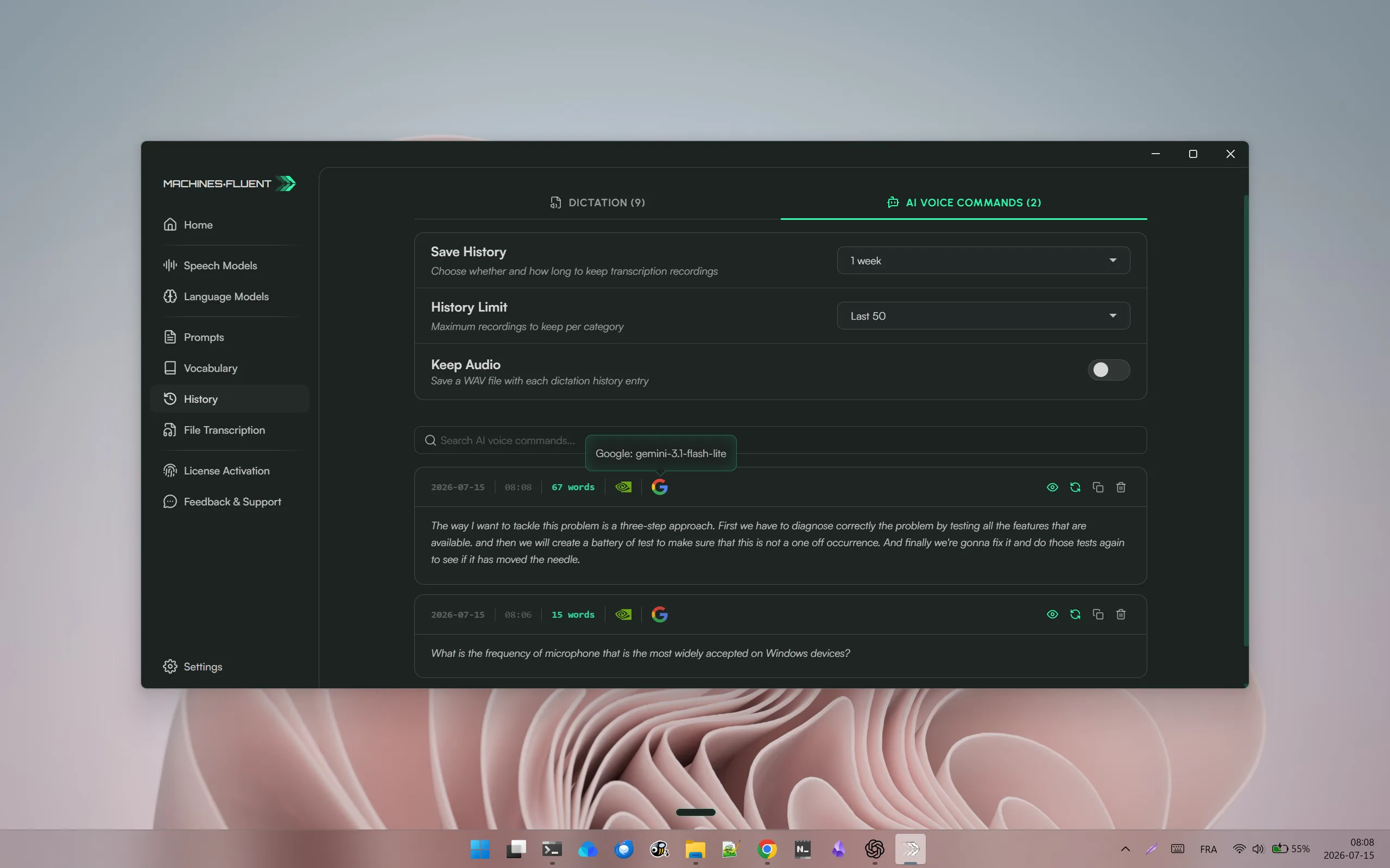
Retry controls sit beside each saved AI command, while retention, history limits, and optional audio storage remain visible above the list.
The distinction matters. Exact retry aims to reproduce the earlier result, while Current retry is useful when the text still matters but your setup has changed. Retry output goes to the clipboard for review instead of being pasted automatically. Some image-based requests need to be rebuilt rather than retried exactly.
This is more than a convenience feature. It turns History into a recovery tool for the ordinary failure mode where an AI answer was close, a prompt has since changed, or a result needs another pass without repeating the entire voice capture.
Decide how long history should exist
v1.1.1 makes retention explicit: Forever, 24 hours, one week, one month, or Never. Optional audio storage remains a separate choice, so turning on History does not automatically save recordings.
Use a shorter window when you want a recovery buffer but do not want persistent old text. Use a longer window when History is part of the working system. Choose Never if persistent History files are not appropriate for the workflow. The right answer is not always "keep everything"; it is the smallest retention window that still makes recovery useful.
History also receives clearer provider and model icons, larger icon slots, cleaner metadata, and tooltips for the exact saved ASR or AI model names. Those details make it easier to understand what you are retrying instead of treating the entry as a mysterious black box.
The rest of the release removes friction from the handoff
Several changes support the same goal: do not let the interface lose the thread between recording, transcription, and AI output. The dock remains open through Smart Dictation’s handoff instead of collapsing and reopening. Popup menus also return to the expected place when opened again.
The release also makes quota, permission, capacity, and model errors easier to understand, and blocked preview sessions no longer stay stuck loading. Speech settings now separate Local Models and Cloud Models. Prompt cards remain visible but locked when Smart Dictation is off, so existing configuration stays inspectable.
Together, these changes make everyday work more dependable: the interface keeps its place, errors are easier to understand, and existing settings remain visible when a related feature is turned off.
Build website routing around destinations, not browsers
Application routing can distinguish Word from Slack, but it cannot distinguish two websites open in the same browser. Website and domain routing closes that gap.
A practical setup might use:
| Destination | Useful Smart Dictation behaviour |
|---|---|
| Gmail or Outlook web | Produce concise email paragraphs and preserve the intended tone. |
| A documentation site | Use headings, steps, code-safe wording, and explicit caveats. |
| A support dashboard | Create an empathetic reply with a short diagnosis and next action. |
| A project tracker | Convert speech into a title, description, acceptance criteria, and owner. |
| A general browser tab | Fall back to the default Smart Dictation prompt rather than forcing a specialized format. |
Route only when the destination changes the required output. A separate prompt for every domain creates configuration debt and makes behaviour harder to predict.
Choose the right kind of History retry
| Retry mode | Use it when | Check before running |
|---|---|---|
| Exact retry | You want to rerun the saved request with its earlier setup. | Whether the saved entry contains everything the task needs. |
| Current retry | The source text is useful but your current setup should be used. | The active configuration and the new output destination. |
| No retry | The entry contains sensitive material, stale context, or an image request that cannot be reproduced from saved data. | Whether rebuilding the task is safer and clearer. |
Retry output goes to the clipboard so it can be reviewed before insertion. That boundary matters: rerunning an old AI request should not silently replace text in whichever app happens to have focus.
Should you update?
Update now if you dictate in several browser tools, use Smart Dictation, or rely on History to recover drafts and AI outputs. Website routing, retry, and retention controls are immediately useful in those workflows.
If you use simple dictation in one application, the dock, preview, settings, and error-state fixes still make the workflow clearer.
After updating, assign one Smart Dictation prompt to a website, switch the recording mode from the Speech Engines popup, and retry one History item. Then choose a retention window deliberately. That is the shortest path to seeing what v1.1.1 actually changes.
FAQ
What is website-aware Smart Dictation?
It allows prompt routing by website or domain, so two destinations inside the same browser can use different output instructions.
What is the difference between exact and current History retry?
Exact retry uses the saved request configuration as closely as the stored snapshot allows. Current retry reuses the saved source with the configuration that is active now.
Does enabling History automatically save audio?
No. History retention and the optional Keep Audio setting are separate decisions.
What happens when History retention is set to Never?
Persistent History entries are not kept. Choose the smallest retention window that still supports the recovery workflow you need.
Get the current version from MachinesFluent for Windows. The best update is one that makes a real workflow less likely to break in the middle.
Continue from this release
Website routing and History retention raise two larger questions. Bring Your Own Key Is a Product Strategy explains control over provider routes, while Local AI Models Change the Privacy Risk Profile separates local processing from cloud history and other stages.
Source
- MachinesFluent public changelog, v1.1.1 release notes.