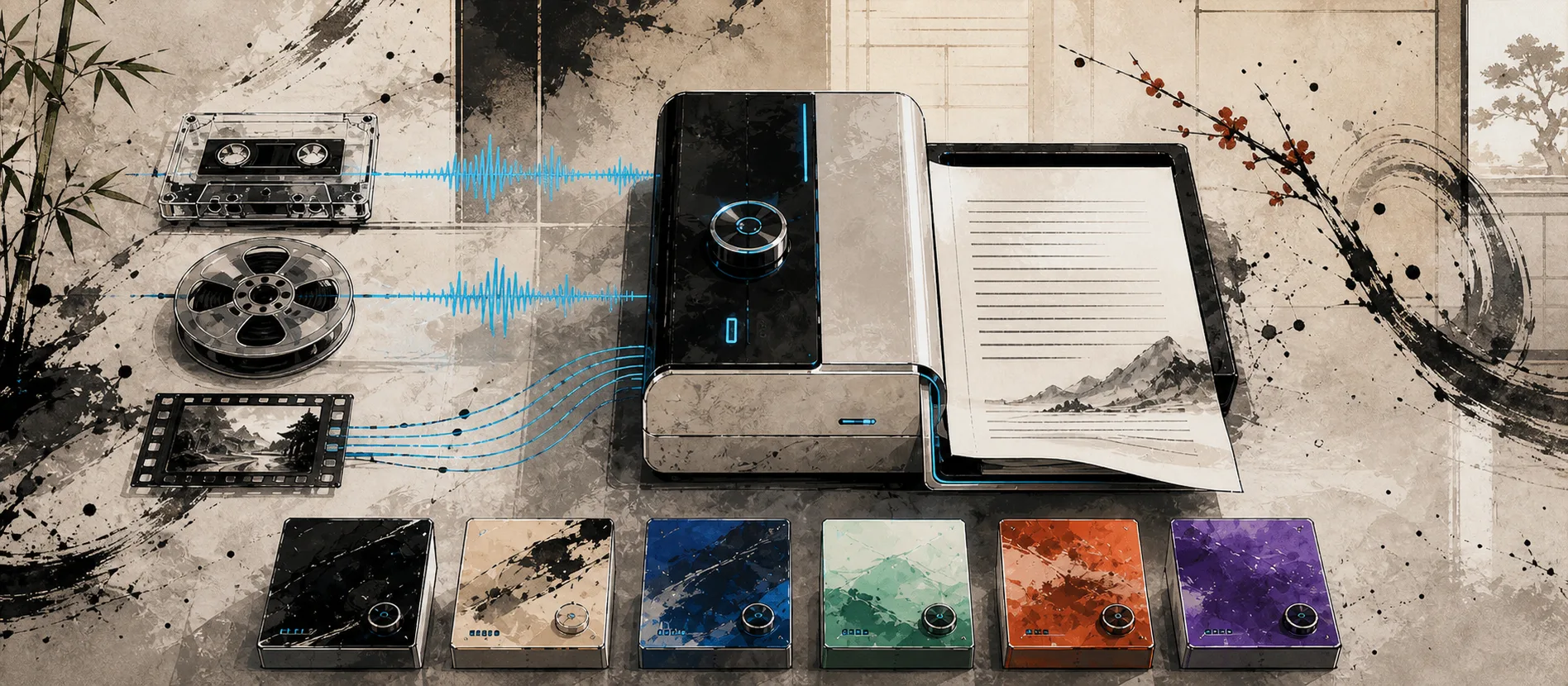
MachinesFluent changed more in v1.1.2 and v1.1.3 than our blog reflected. We did not publish a standalone v1.1.2 product update, so this post covers both releases. MachinesFluent can now transcribe existing audio and video files, and the app has a redesigned interface with a complete theme system.
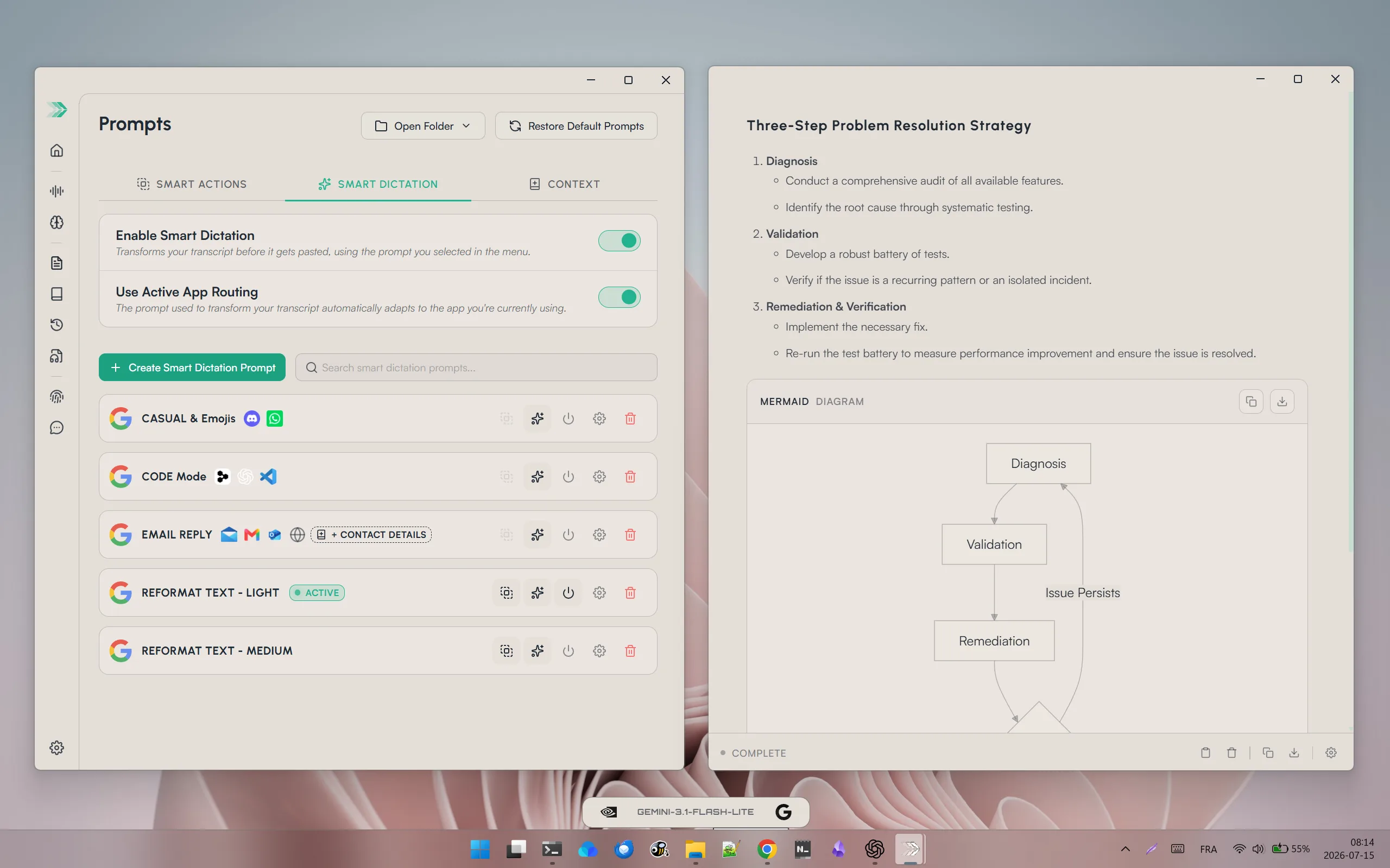
MachinesFluent in its light theme, with Smart Dictation controls beside the resulting structured text.
What actually changed
| Release | What changed | Why it matters |
|---|---|---|
| v1.1.2 | File Transcription for queued audio and video files | Meetings, interviews, voice notes, podcasts, and recordings can become text without being replayed into a microphone. |
| v1.1.2 | A reworked interface with named dark and light themes plus custom colors and contrast | MachinesFluent can match the workspace instead of forcing everyone into one visual style. |
| v1.1.2 | Reorganized Settings and clearer model, support, and update pages | Important controls are easier to find and the app feels more coherent. |
| v1.1.3 | Theme selection during onboarding, a more useful Windows tray, and better multi-monitor dock behavior | The redesigned experience now starts on first launch and stays closer to the work. |
A new interface you can make your own
The Appearance page is no longer a small collection of disconnected color controls. v1.1.2 rebuilt it as a real theme system with dark and light modes, dozens of named presets, and direct control over the accent, background, foreground, contrast, borders, and sidebar treatment.
The design principle is simple: a serious working tool can still give people meaningful control over how it looks. MachinesFluent includes dark and light modes, named presets, and a broad library of visual directions. You can choose a complete preset in seconds or use one as the starting point for a custom interface.
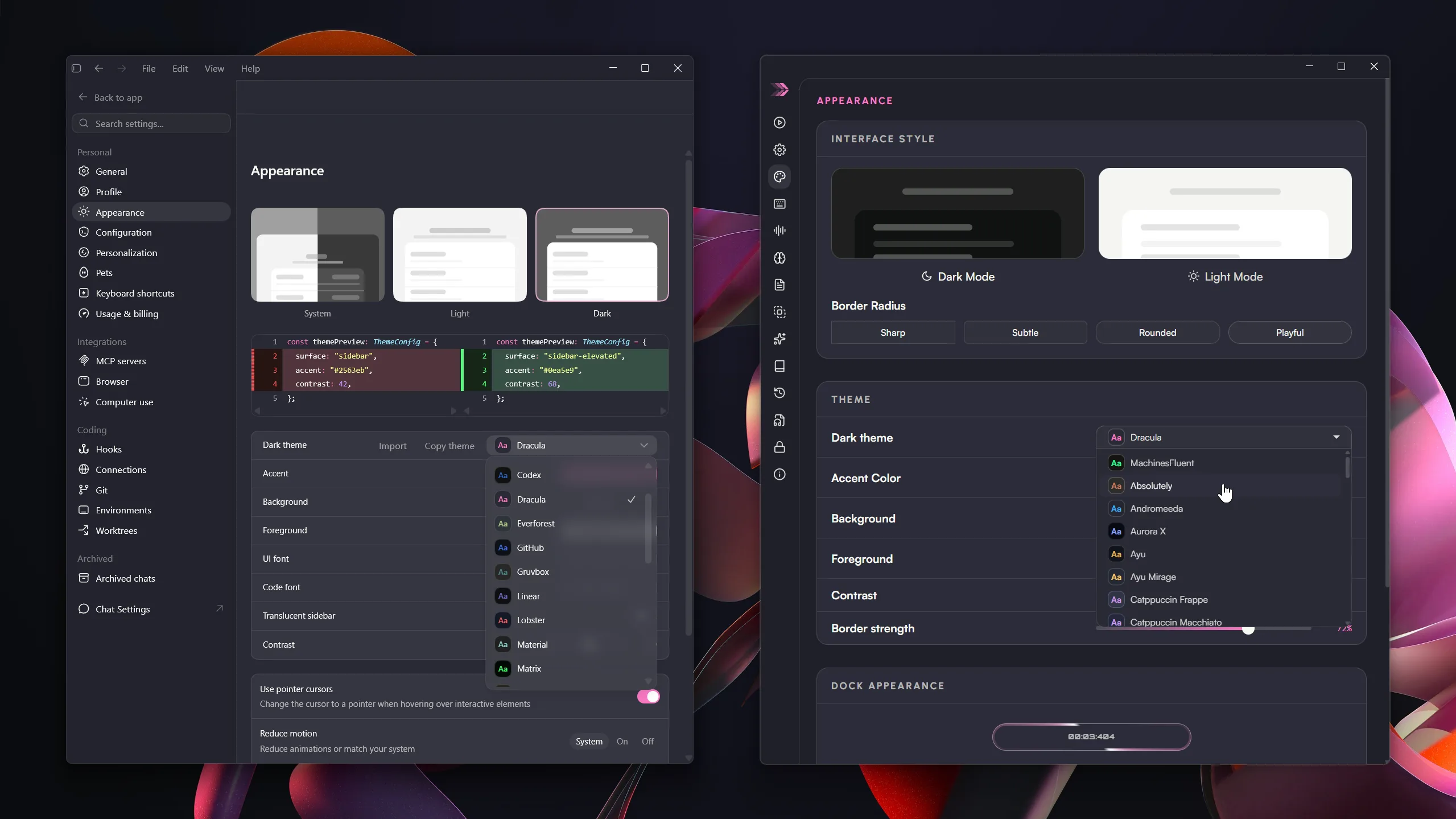
Choose dark or light mode, select a named theme, then adjust the detailed controls only if you want to.
This was more than a palette swap. Settings were reorganized around clearer destinations such as Home, Language Models, Speech Models, Smart Dictation, and Feedback & Support. Cards, controls, previews, spacing, and navigation were brought into one visual system so the application feels like one product instead of a collection of separate configuration pages.
v1.1.3 carries that work into first-run setup. New users can choose dark or light mode and select a named theme during onboarding, using the same controls found in Appearance later. The first experience now reflects the actual application instead of a temporary setup screen.
Turn recordings into text
File Transcription is the largest new capability in v1.1.2. Drop audio or video files into MachinesFluent, queue several at once, and turn them into text with the downloaded Whisper or Parakeet model already selected under Speech Models.
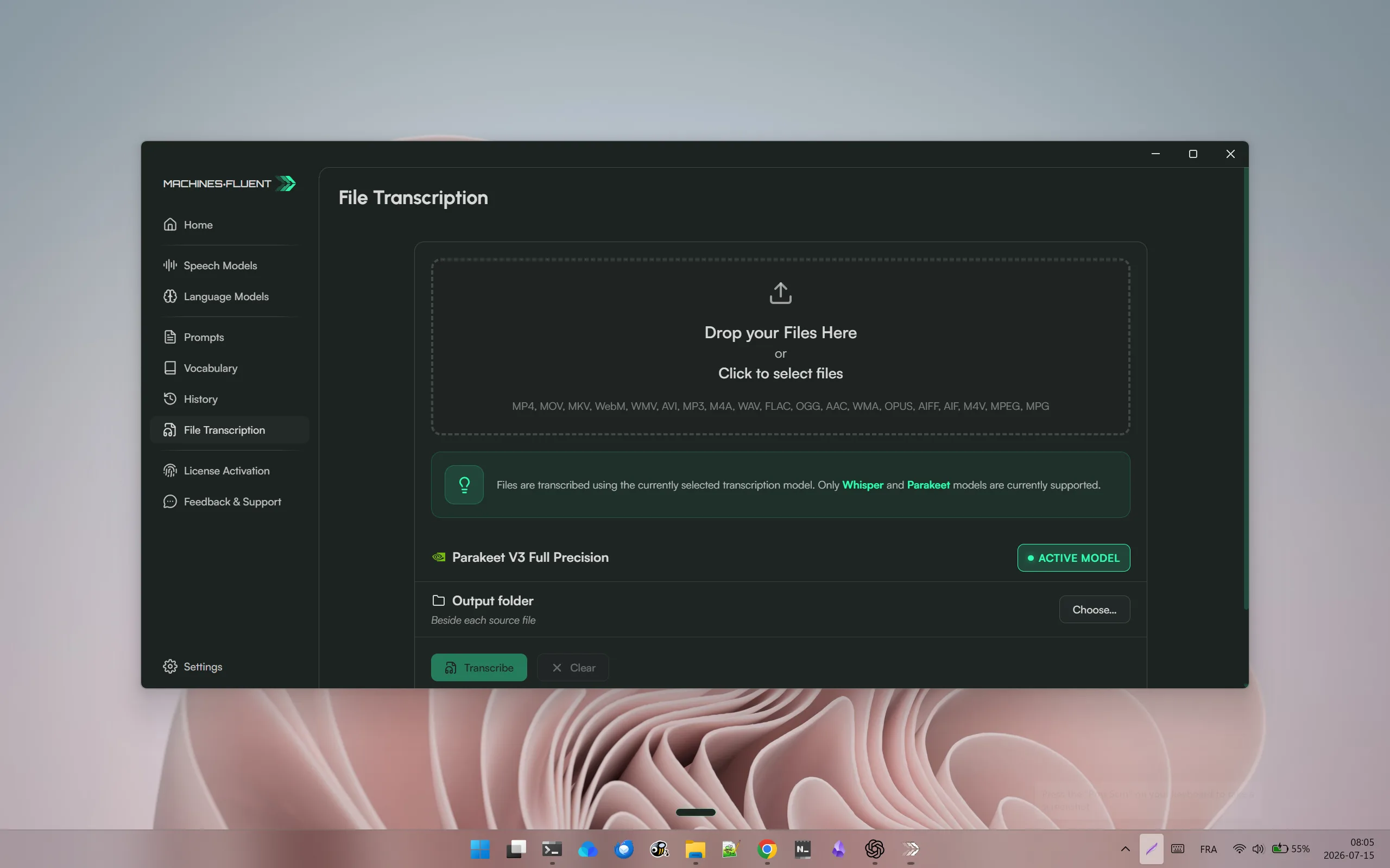
The File Transcription page accepts common audio and video formats, uses the selected local model, and lets you choose where transcripts are saved.
This opens a different workflow from live dictation. A meeting recording can become notes. An interview can become an editable transcript. A podcast, lecture, voice memo, screen recording, or video can become searchable text without playing the media back into a microphone or moving it into a separate transcription service.
The page supports drag and drop, an optional output folder, per-file progress, retry, and an immediate Abort control. Completed transcripts are saved beside the source file or in the chosen folder, while existing transcript files are preserved rather than overwritten.
Because this workflow uses downloaded Whisper or Parakeet models, the transcription stays on the machine. Model choice remains in Speech Models, so there is no second setup system to learn just for files.
A better fit for the Windows desktop
v1.1.3 makes the redesigned app easier to reach during ordinary work. The Windows tray can now show or hide the dock, switch the active input, open Hotkeys or Appearance, display the installed version, and show update status.
For multi-monitor setups, the collapsed dock can follow an ordinary click to the monitor currently in use when cursor following is enabled. There is still one dock; it simply stays closer to the active workspace. These are supporting improvements rather than the reason for the release, but they make the larger interface overhaul feel more natural across Windows.
Onboarding also uses the real microphone and theme controls from Settings. Input testing provides a quick confirmation step inside a smoother setup experience.
A repeatable local file-transcription workflow
File Transcription is most useful when the output has a defined next step:
- Choose a supported audio or video file and decide where its transcript should live.
- Select and prepare the local Whisper or Parakeet model appropriate for the machine and language.
- Run one short representative file before starting a large batch.
- Check names, timestamps or speaker changes, punctuation, and difficult audio before trusting the workflow.
- Preserve the raw transcript when it is a record; create a separate cleaned summary or structured note when interpretation is useful.
- Keep the source media and transcript naming clear enough that neither is mistaken for the other.
Local processing removes the need to upload the media to a separate transcription service for this route. It does not automatically make the source file safe, identify speakers, summarize the content, or guarantee perfect recognition. Audio quality, accents, overlapping speech, model choice, and hardware still matter.
File transcription and live dictation solve different jobs
| Live dictation | File transcription |
|---|---|
| Captures a thought while the user is speaking. | Processes media that already exists. |
| Usually inserts text into an active Windows app. | Saves a transcript beside the source or in a chosen folder. |
| Feedback must make start, stop, focus, and insertion clear. | Progress, retry, abort, output naming, and batch behaviour matter more. |
| The speaker can correct or repeat immediately. | Poor audio may require review against the recording. |
| The output may be raw or prompt-shaped Smart Dictation. | The first output is a transcript; summary or restructuring is a separate decision. |
Treating both as “speech-to-text” hides the different failure modes.
Themes are not only decoration
The new Appearance system matters when MachinesFluent is present throughout the working day. A useful theme keeps text readable, makes active state obvious, preserves contrast, and does not let accent colour compete with recording or error feedback.
Choose the visual style you like, then verify the practical states: idle, recording, processing, completed, warning, disabled, and focused controls. A theme has failed if it looks attractive in Settings but makes the working state harder to read.
What about snippets?
Voice snippets are not new in these releases. They shipped in v1.1.0 and were covered in the v1.1.0 product update. A short spoken trigger can expand into a saved phrase or larger block of text locally after transcription. That remains a useful feature, but repeating it here would blur what v1.1.2 and v1.1.3 actually added.
Should you update?
Update now if you work with recorded audio or video, want the app to fit your visual preferences, or spend the day across several Windows applications and monitors. File Transcription and the new Appearance system are substantial additions, not maintenance details.
If you only use quick live dictation, the interface overhaul is still immediately visible. Choose a theme, open File Transcription with a short recording, and check the tray once. Those three actions show the real update faster than reading every technical release note.
FAQ
Can MachinesFluent transcribe existing audio and video files?
Yes. v1.1.2 added File Transcription for common audio and video formats, with drag and drop, progress, retry, abort, and selectable output location.
Does file transcription upload the recording?
This workflow uses downloaded Whisper or Parakeet models and processes the file locally. Other MachinesFluent cloud features remain separate routes.
Will an existing transcript be overwritten?
No. The workflow preserves existing transcript files rather than silently overwriting them.
Are voice snippets new in v1.1.2 or v1.1.3?
No. Voice snippets shipped in v1.1.0. These releases focus on file transcription, the redesigned interface and themes, and Windows desktop controls.
Get the current version from MachinesFluent for Windows. The product now handles both sides of voice work: speaking live into any Windows app and turning recordings you already have into usable text.
Continue from this release
File transcription creates raw material; the next question is what that material should become. Read Offline Transcription Software for Windows to compare MachinesFluent with Buzz, Vibe, and aTrain. Read AI Dictation: From Speech to Clean, Structured Text for the transformation after recognition, or use the Best Dictation Software for Windows guide to compare live dictation and recorded-media requirements across products.
Source
- MachinesFluent public changelog, v1.1.2 and v1.1.3 release notes.